Construction estimating, bidding and job costing features
Everything between the bid and the profit.
BidDig covers the stretch of a job where money is won or lost: pricing it, sending the proposal, pricing the changes, and holding the work to the number you bid. Here is each part, with the screen you would use.
60-day free trial. No credit card required.
CatalogSet your prices up once. Every bid starts from them.
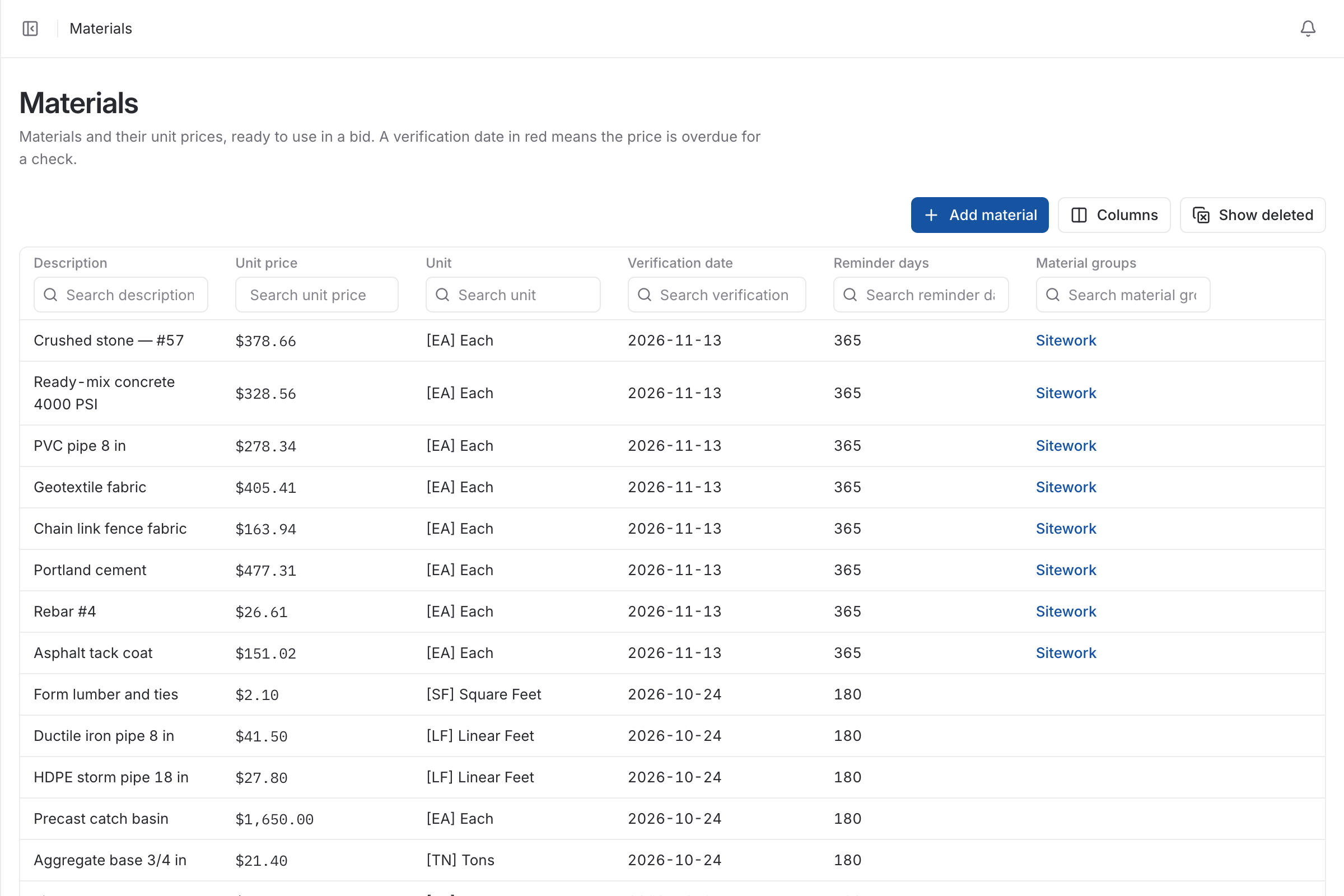
A spreadsheet estimate carries whatever rates were in the last job’s copy. Here your bid items, materials, people and machines are kept in one catalog, and every bid is built from it.
- Bid item headers with the line items grouped under each, numbered your way
- Materials with a description, unit price, unit and material groups
- A verification date and reminder period on every material price; an overdue date is shown in red
- Units such as cubic yard, linear feet, square feet, tons and lump sum, plus any you add
- Sub companies kept with a description, email and phone, ready to use in a bid
- Standard exclusions, qualifications and acceptance wording written once
Estimating and biddingEvery bid built from the same numbers.
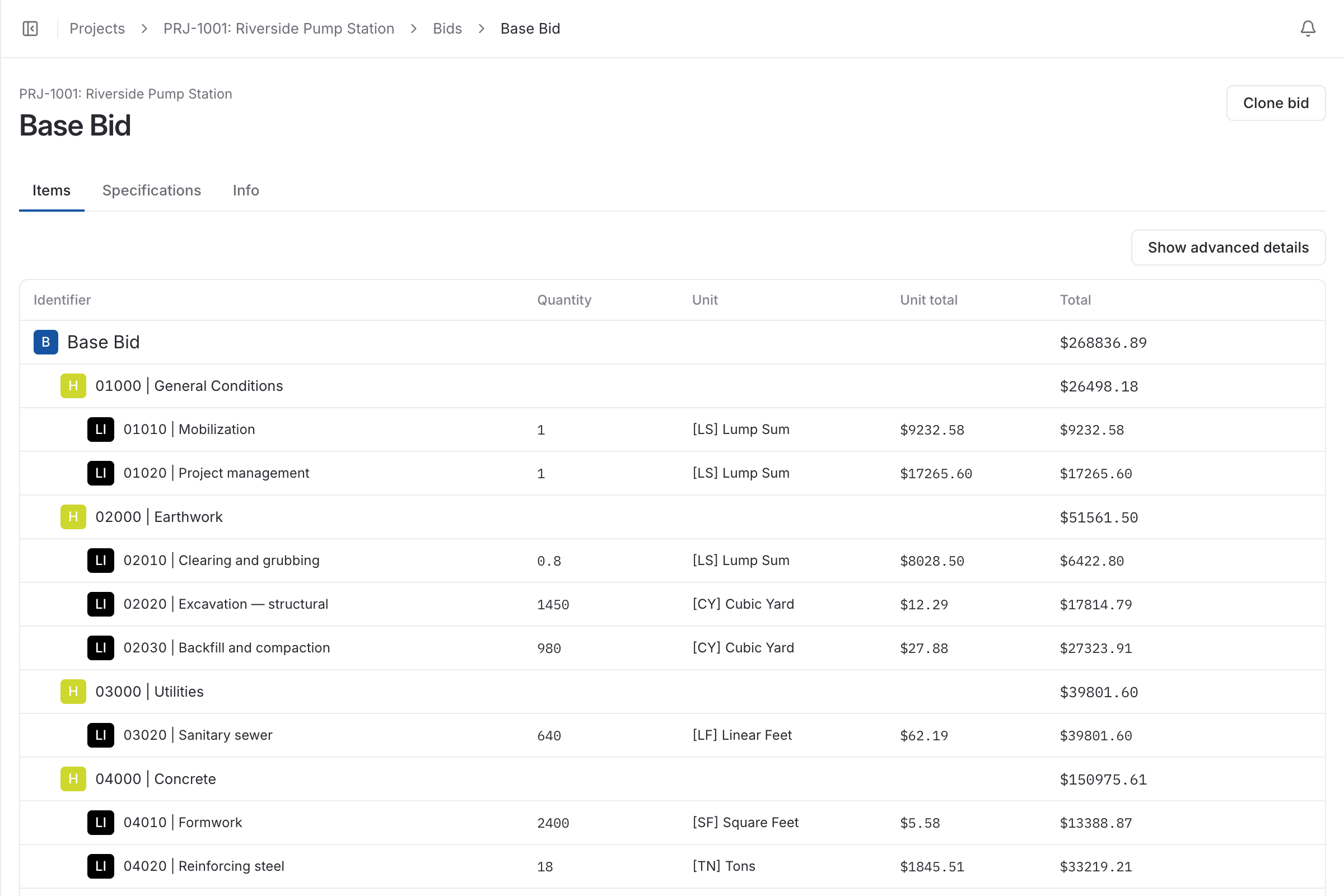
Two estimators pricing the same job should get the same answer. A bid is assembled from catalog headers and line items, and each line is costed the same way every time.
More on estimating and bidding- Headers and line items with quantity, unit, unit total and total
- Each line costed as material, labor, equipment, subcontractor and contingency
- Tax, overhead, bond and profit applied from your default rates
- Company rates, your own rates as a user, and the rates on a single bid can each be set
- Owned and rental equipment treated differently for tax and bond
- Clone a bid to price an alternate or a similar job
ProposalsSend the proposal from the bid, and know it arrived.
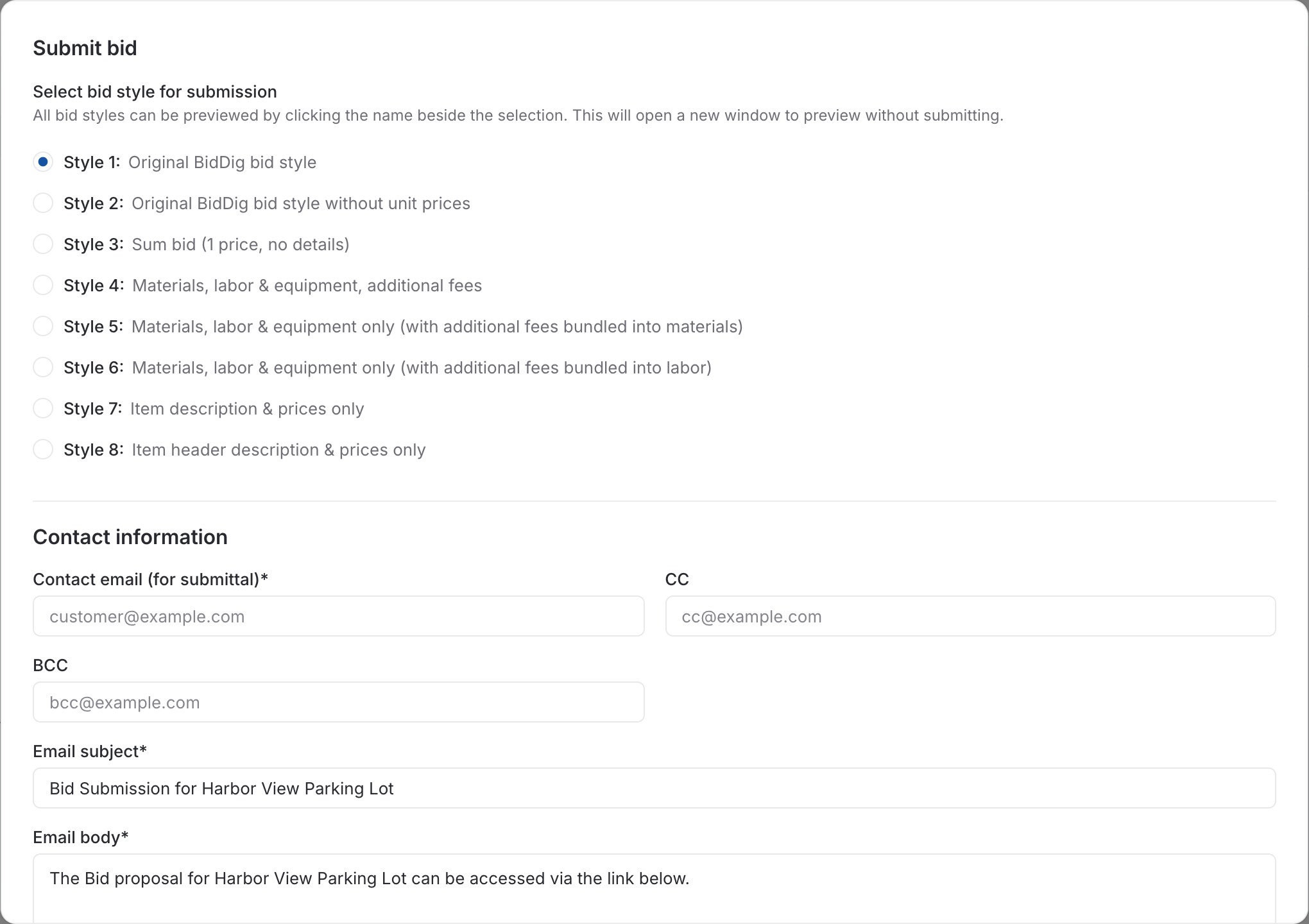
Copying totals into a proposal template is where versions multiply. The proposal is generated from the bid as a PDF, in the amount of detail you choose, and emailed from the project.
More on proposals- Eight bid styles: full detail, without unit prices, one sum, materials, labor and equipment breakdowns, or descriptions and prices only
- Preview any style before you send it
- Customer email with CC and BCC, your own subject and message
- Mark a bid as submitted without mailing when you delivered it another way
- See whether the email was sent, delivered and viewed
- Your company logo on the PDF
Change ordersPrice the change the way you priced the job.
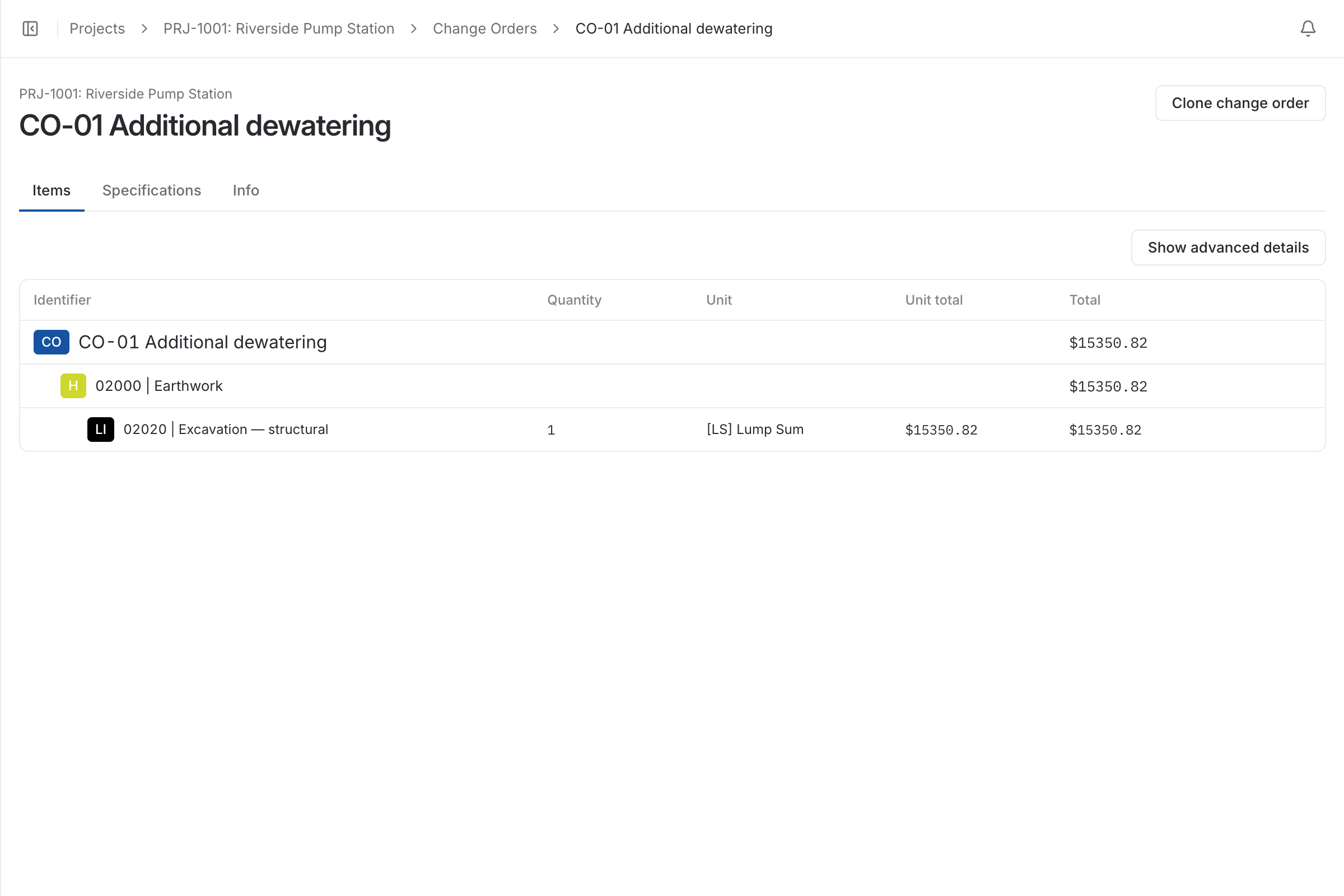
Extra work agreed on site and priced from memory becomes an argument at the final bill. A change order here is built like a bid and kept on the project it changes.
More on change orders- Added to any project that has an awarded bid
- Built from the same headers, line items and rates as the bid
- Awarded or rejected on its own, separately from the base bid
- Sent to the customer as a proposal in any of the eight styles
- Cloned when a similar change comes up again
ProjectsEvery job, from the bid date to closeout.
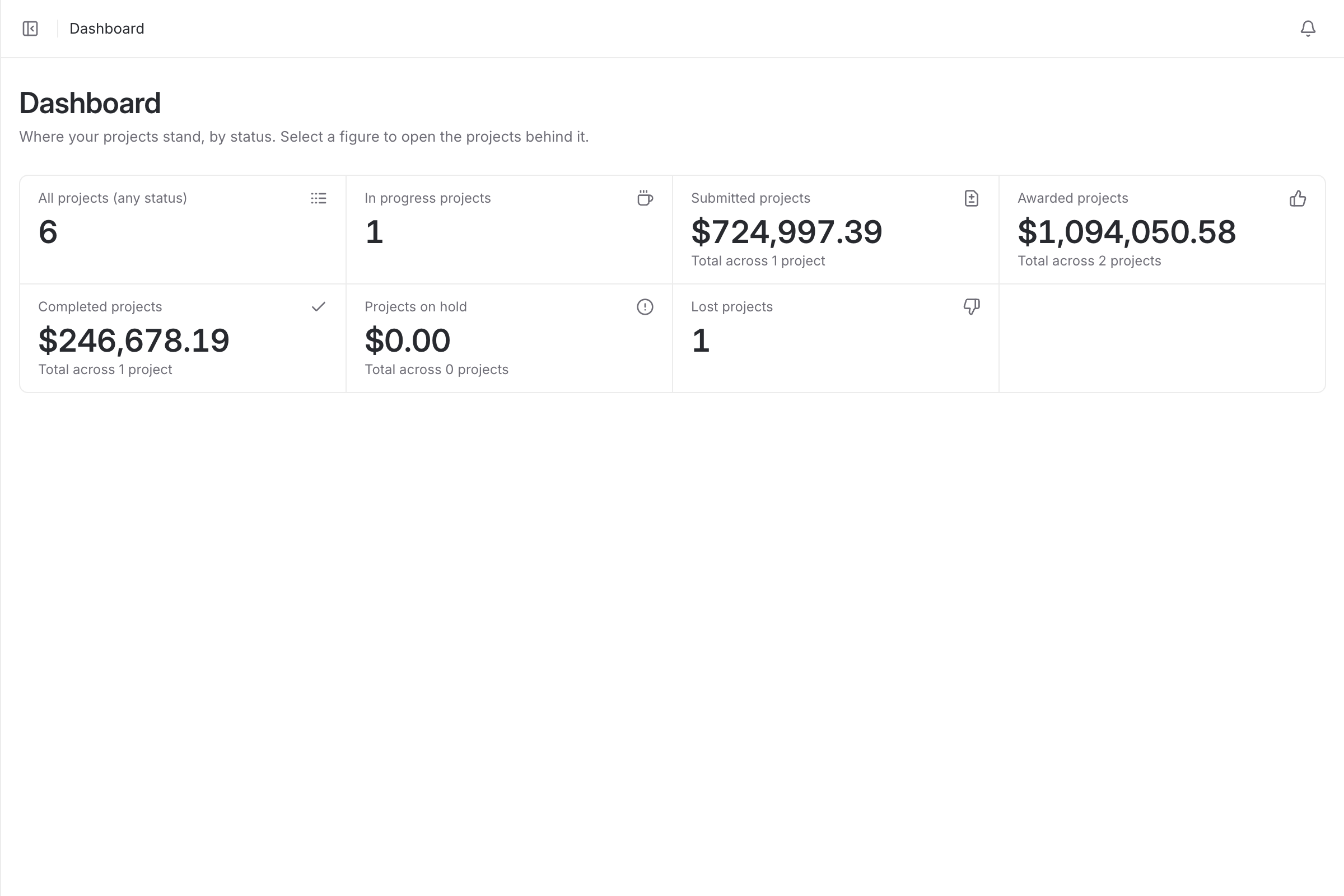
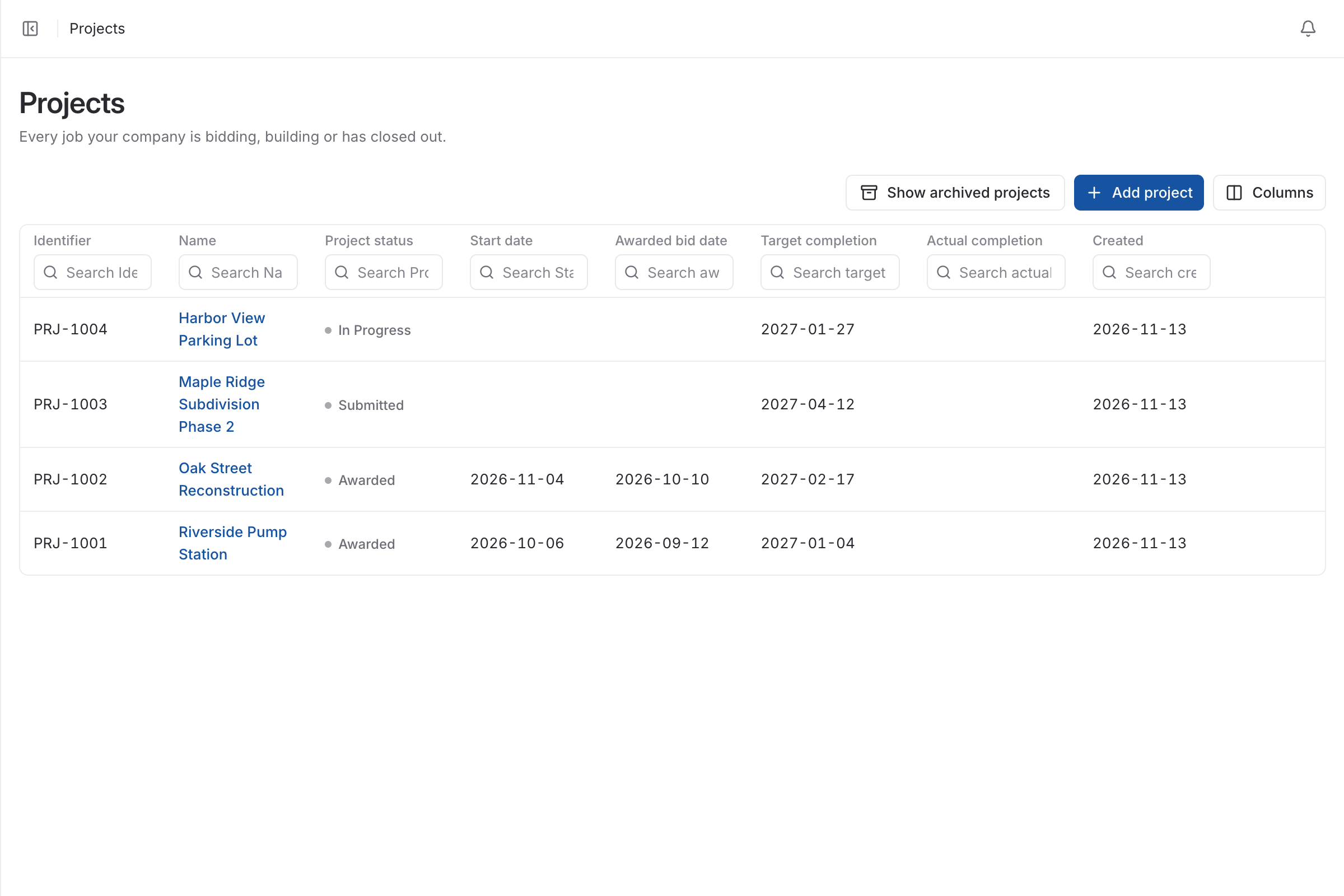
A job’s bid, its changes, its costs and its paperwork usually live in four places. A project holds all of them, and its status tells you where the job stands.
- Statuses for in progress, submitted, awarded, completed, on hold and lost
- Start date, awarded bid date, target completion and actual completion on every project
- Bids, change orders, costs, notes and documents kept on the project
- Notes and documents can be marked administrative, which hides them from field roles
- People are assigned to the projects they work on
- Archived projects stay out of the way until you ask for them
Job costingSee the overrun while you can still do something about it.
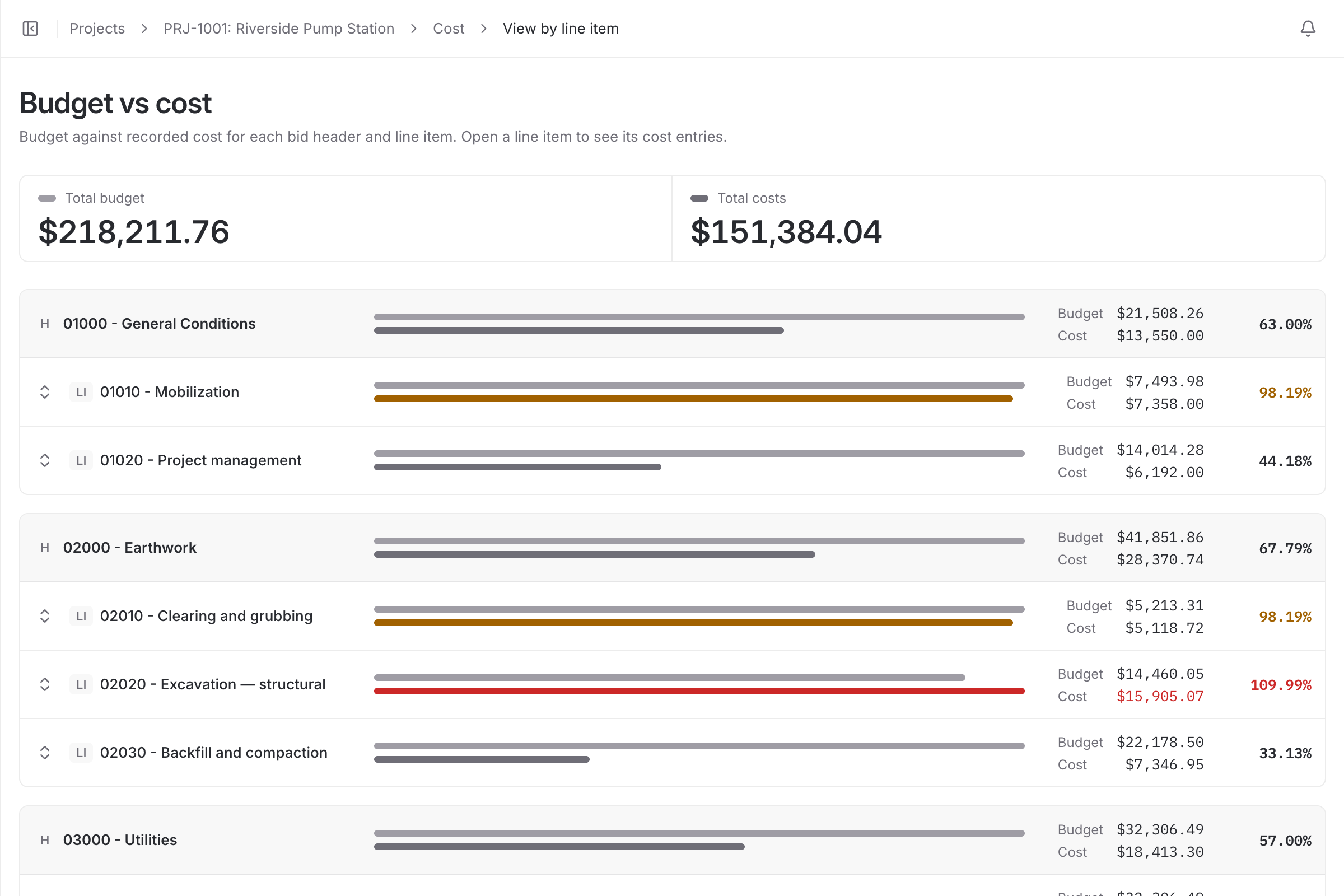
Most contractors learn a job lost money after it closes, because the bid and the costs were never side by side. When a bid is awarded, its line items become the budget, and every cost is recorded against one of them.
More on job costing- Total budget and total cost for the job at the top
- A budget bar and a cost bar for every header and line item
- The percentage of budget used on each line
- A line turns orange from 80% of its budget and red when it goes over
- Open a line item to see the cost entries behind it
- The budget is your estimated cost before markup, so cost is compared with cost
Cost typesKnow whether it is the labor or the materials.
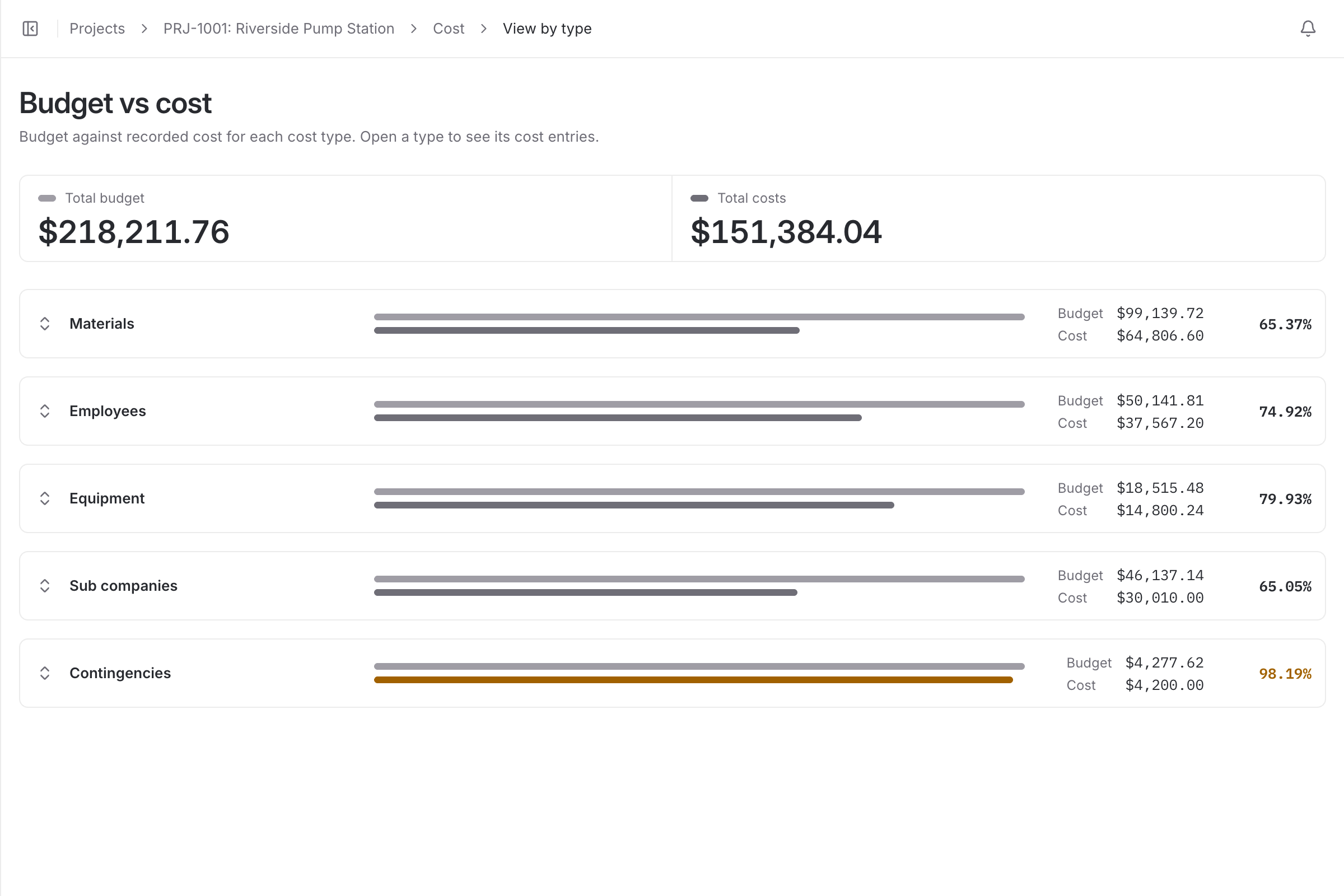
A job can be on budget overall while one kind of cost quietly runs away. The same costs can be read by type, so you can see which part of the estimate was wrong.
- Budget against cost for materials, employees, equipment, sub companies and contingencies
- Costs added as employee or equipment hours, material, sub company, or miscellaneous and contingency
- Open a cost type to see its entries
- The same entries feed both the cost type view and the line item view
TimesheetsHours from the field, in the job cost the same day.
Paper timesheets arrive on Friday and reach the job cost a week later. Hours here are entered against the project, and they are job cost as soon as they are saved.
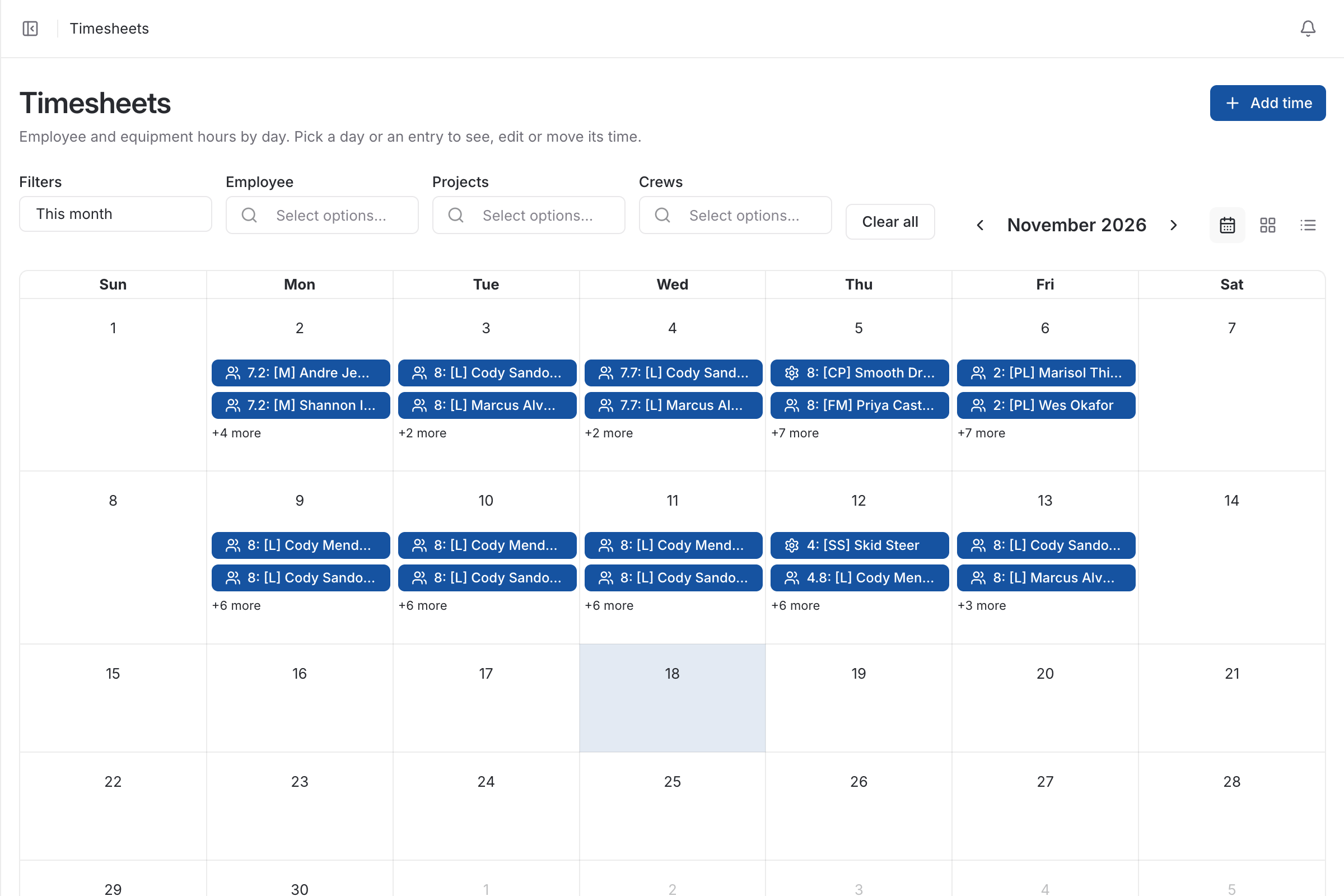
More on timesheets and crews- Employee hours and equipment hours on one calendar
- Filter by date range, employee, project or crew
- Calendar and list views
- Pick a day or an entry to see, edit or move its time
- Each entry is booked to a project and a line item
- Works in a phone’s browser, with nothing to install
Crews, people and equipmentThe people and machines that work together, kept together.
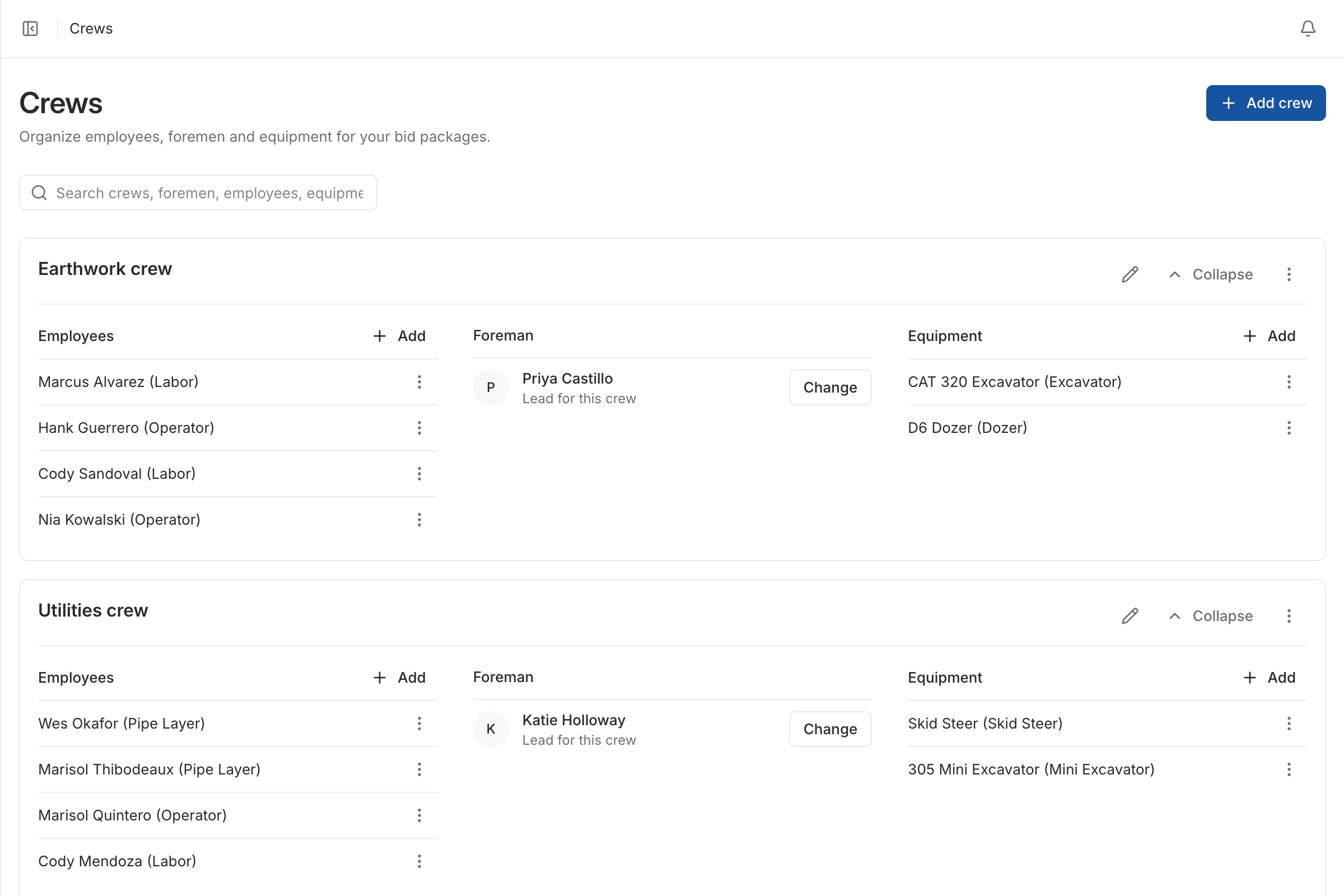
Labor and equipment are most of what a job costs, and their rates are the first thing to go stale. Each person and machine is set up once with what it costs you.
- A crew has its employees, a foreman who leads it, and its equipment
- Employees have a classification, an hourly rate or a salary, and a crew
- Employee classifications such as operator, pipe layer, labor, carpenter, mason and mechanic, plus your own
- Equipment is marked owned or rental, with an hourly operating cost and a classification
- Equipment classifications such as excavator, dozer, loader and skid steer, plus your own
ReportsProfit and loss per job, without building the report.
When finding out how a job did takes two days of exporting and pasting, it happens once a year. Four reports are already built and take a click.
More on reports- Completed projects profit and loss: budget against cost for projects completed in a date range
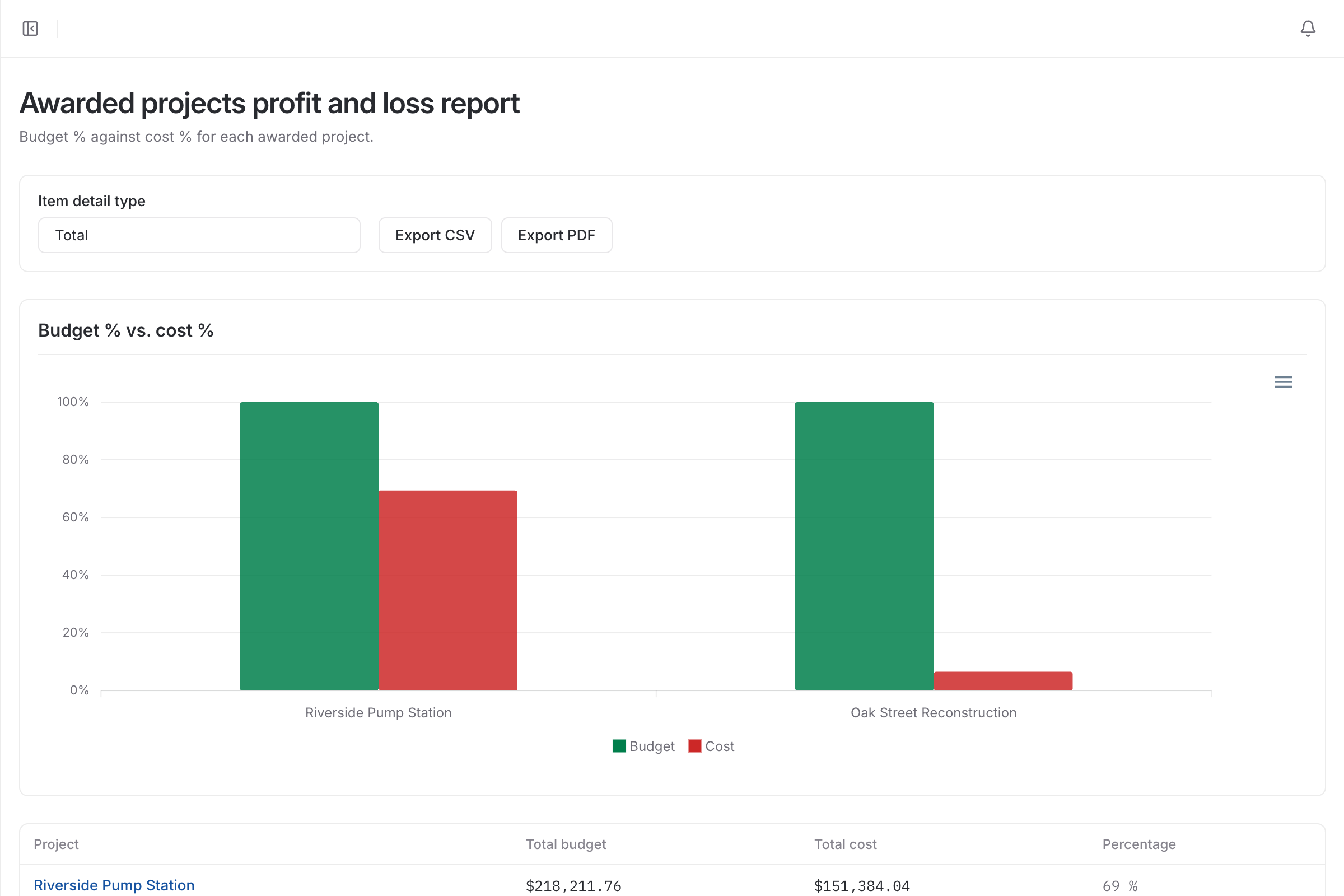
- Awarded projects profit and loss: budget against cost for each awarded project
- Awarded projects progress estimate: calendar days and labor used on each awarded project
- Single project overview: cost and budget for one project
- Every report exports to PDF and to CSV
- Project managers see reports for the projects they are assigned to
Team and accessEveryone sees the job. Not everyone sees the money.
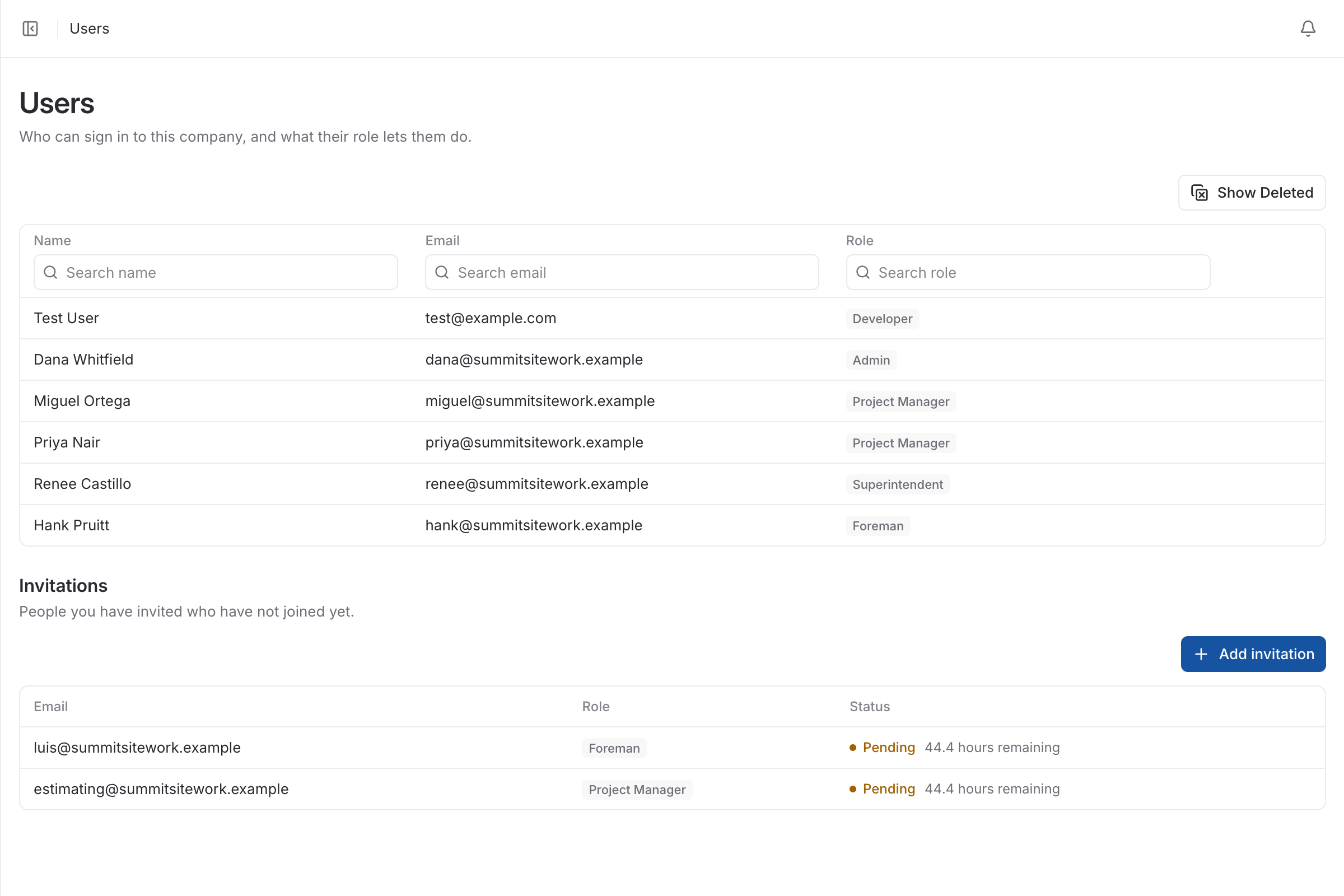
The office needs rates and margins; the field needs to know where to book eight hours. Each person is invited with a role, and the role decides what they see.
- Invite people by email with a role; pending invitations are listed until they join
- Admins see everything, including rates, users and the subscription
- Project managers see their assigned projects with bids, costs and reports
- Superintendents and foremen see their assigned projects and enter hours, without rates or budgets
- Two-step sign-in by email code or authenticator app
- Each company’s data is kept separate from every other company’s
The same product, described by what you need it for
- Construction estimating softwareEstimating software that remembers how you price.
- Construction job costing softwareJob costing that starts from the bid you won.
- Excavation estimating softwareBid excavation and sitework by the yard, the foot and the ton.
- Construction bidding softwareBid software that gets the number right, then gets it out the door.
- Construction timesheet softwareTimesheets that tell you what the job cost, not just what payroll owes.
- Utility contractor estimating softwarePrice pipe by the foot, with the crew and the iron in the number.
- Paving estimating softwareA paving bid is tons, trucks and one good day. Price all three.
- Concrete estimating softwareConcrete is bought by the yard and lost by the hour.
Bid your next job from numbers you can trace.
Set up your catalog, build a bid and send the proposal. Then watch the job against the bid as the costs come in.
60-day free trial. No credit card required.